How it works
PrivateACB reads the transaction history you export from your crypto exchanges. At present it imports CSV files, which is the format the exchanges give you. As it reads a file it checks every field it needs from each row — the date and time, the transaction type, the asset and amount on each side, the fee, and the currency each figure is in — and tells you in the Import window what it found, what it could not read, and any row it will leave out, before anything enters your database.
The checking does not stop at import. Once the calculation has run, the preflight report on the Review tab goes back over the whole history: whether prices and exchange rates are covered for every day the calculation depends on, whether the balances it recounts match what you hold, whether transfers between your own accounts are matched, and anything the calculation could not place. Each one is yours to settle, and the decisions you make are recorded.
The program organises the work into the five stages below, in the order it presents them on its Welcome screen. Each stage opens to a description of what happens there and the screen on which it takes place.
-
Import — CSV files from your crypto exchanges
The Import window reads one file from an exchange or wallet and writes its transactions into your database.
From the PrivateACB Handbook, in the program: Importing your files — Opening the Import window.
Exports from Kraken, NDAX, Newton, Shakepay, Wealthsimple Crypto, Coinbase and Crypto.com (App export) are recognised from their headings. Any other CSV export can be imported by assigning its columns in the same window.
Every layout the program recognises →
PrivateACB — Import 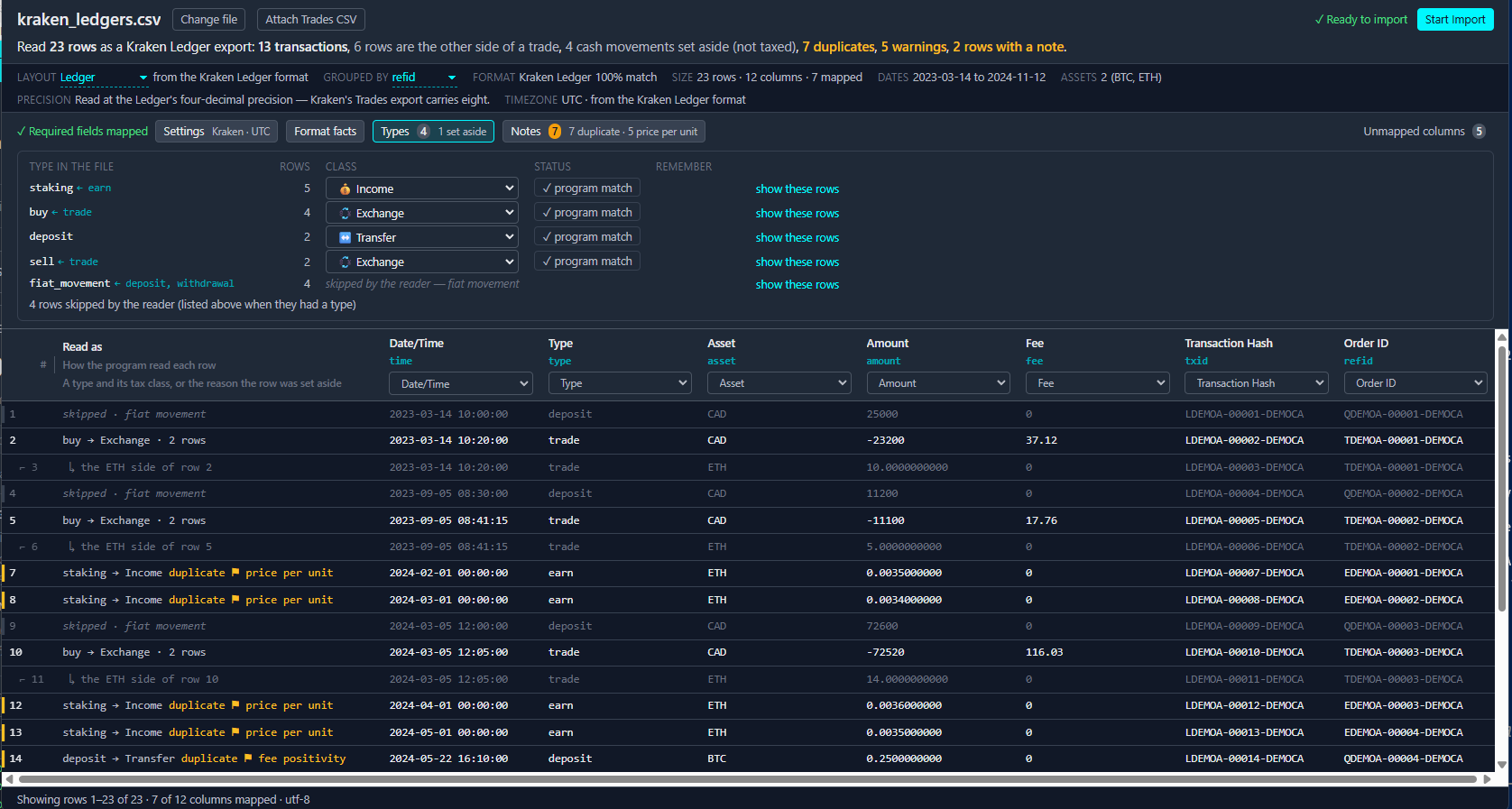
-
Prices — Cover missing prices and rates on the Market Data tab
Some rows carry their own price. A trade usually says what it cost. Others do not: income, rewards and many deposits arrive as a quantity with no value attached, and every row with a tax impact needs a value.
The Market Data tab is where that coverage is built. Its page header reads Rates and Prices, and it holds two sections:
- Exchange Rates — for transactions in a currency other than your reporting currency.
- Cryptocurrency Prices — for coins that need a market value on a given day.
From the PrivateACB Handbook, in the program: Prices and Market Data — Why prices are needed.
PrivateACB — Market Data 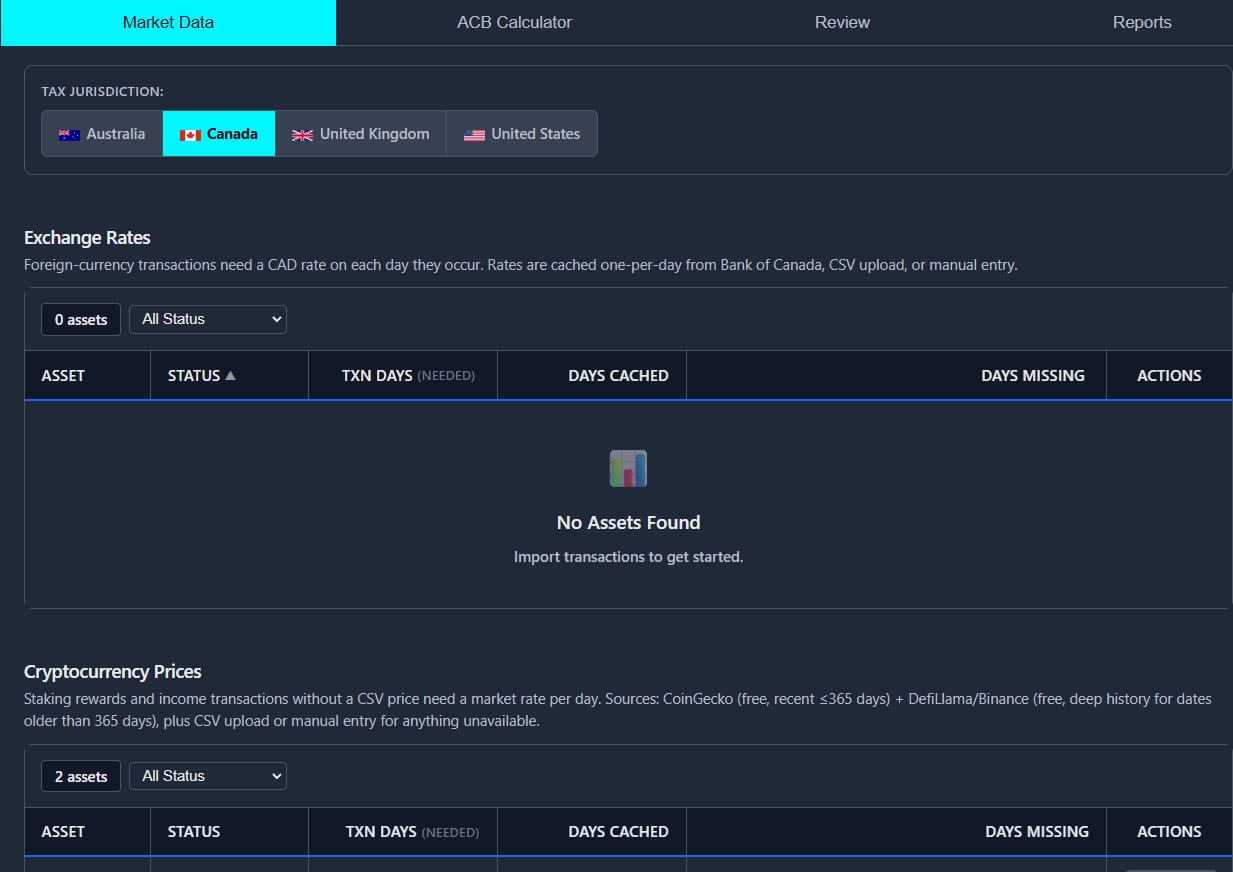
-
Calculate — Run the ACB Calculator across your full history
The ACB Calculator tab is where a calculation is set up and run.
From top to bottom:
- A settings bar with the choices that define a run.
- A Rules: line restating what those choices mean.
- The Assets table, one row per asset in your data.
- The Calculation History panel along the bottom, which appears while runs are in progress and stays afterwards.
From the PrivateACB Handbook, in the program: Calculating — the ACB Calculator — The ACB Calculator tab.
Canada → United States → Australia → United Kingdom →
PrivateACB — ACB Calculator 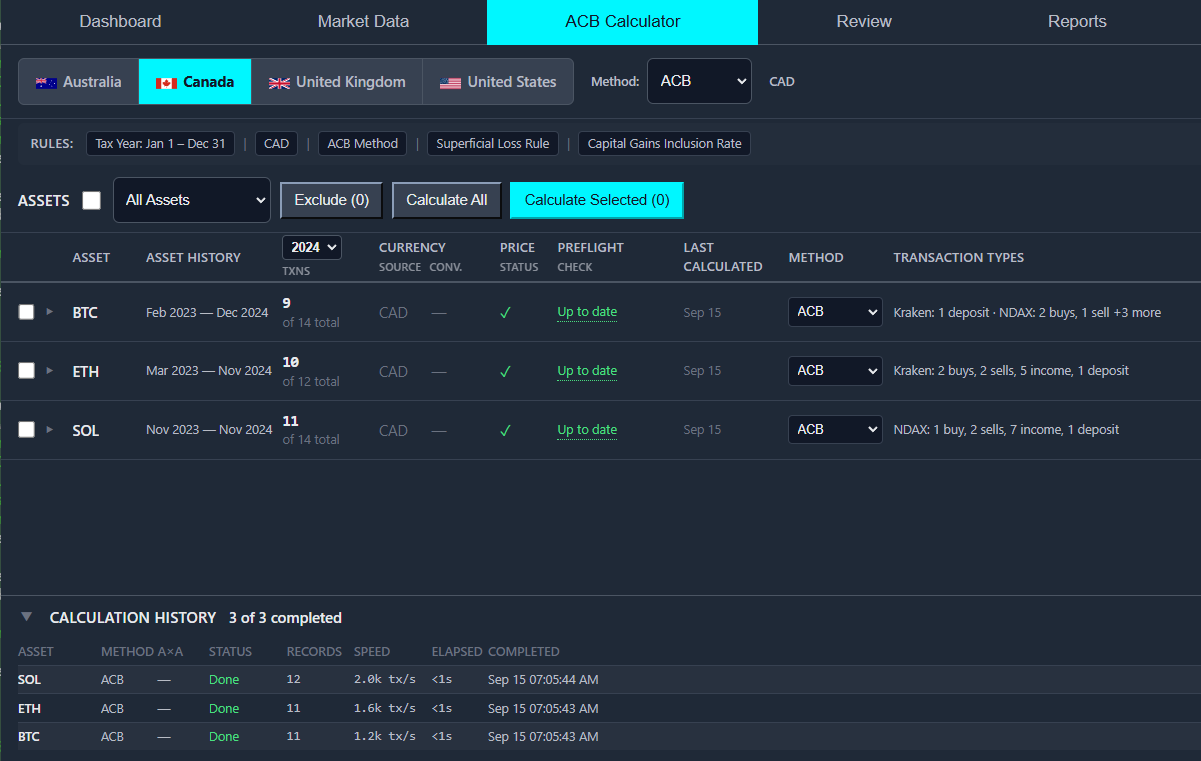
-
Review — Verify balances, checks, and your decisions
The Review tab is where results are verified, not produced. There is no Calculate button here. Runs start on the ACB Calculator, and Review checks what they produced.
A quiet dot lights on the tab when a batch finishes while you are elsewhere.
From the PrivateACB Handbook, in the program: The Review tab .
PrivateACB — Review 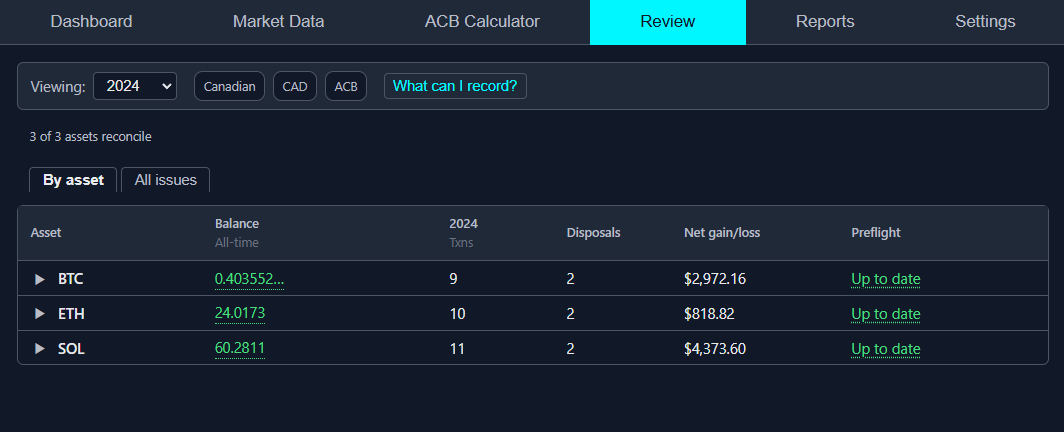
-
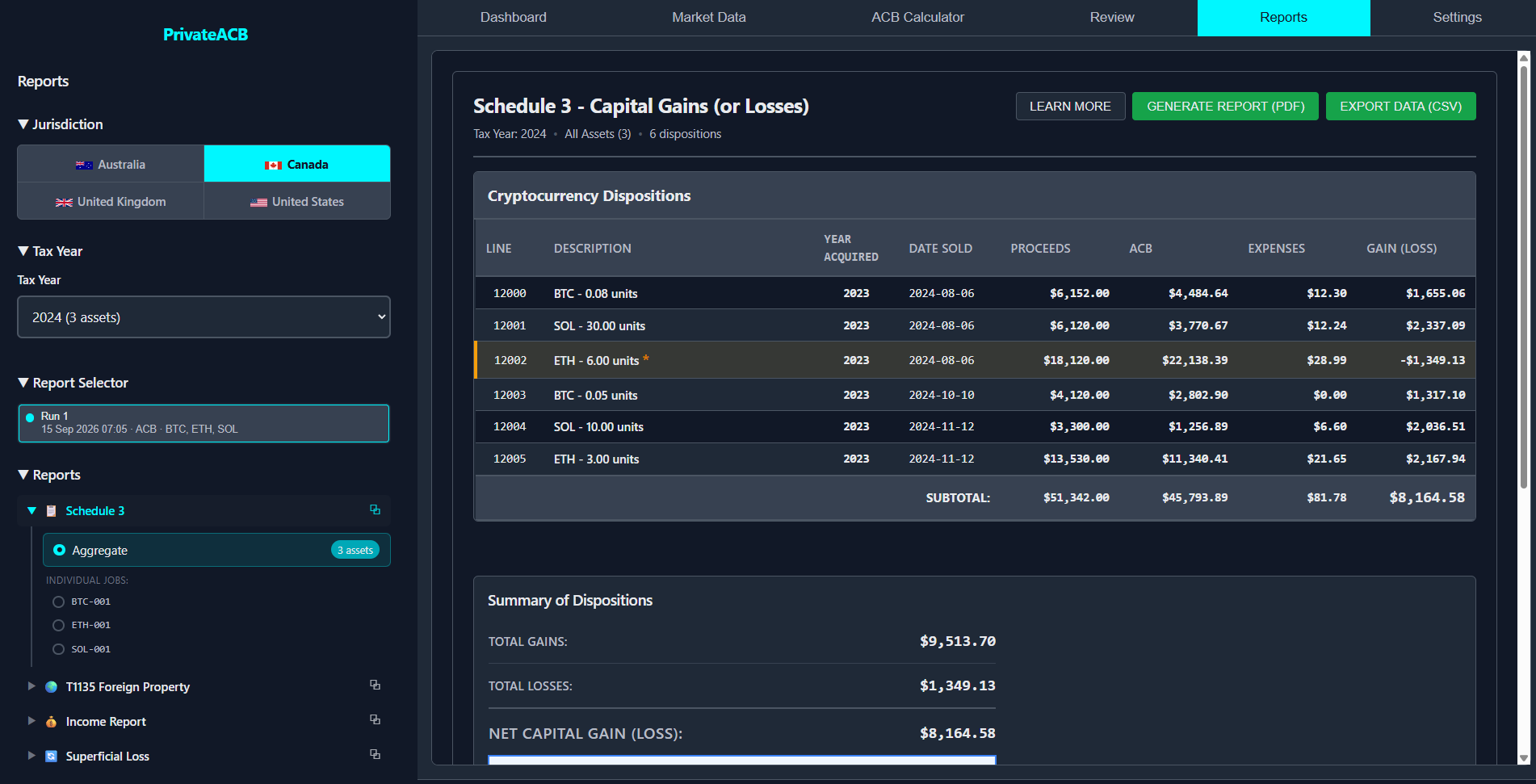
Report — View and export PDF and CSV reports
The Reports tab is a sidebar and a viewer. Pick the jurisdiction, the Tax Year and, for the United States and Australia, the cost-basis method on the left. The report renders on the right.
Each jurisdiction has its own set, twenty-two reports in all, in three kinds.
From the PrivateACB Handbook, in the program: Reports — The reports by jurisdiction.
PrivateACB — Reports